
Cameleon
Safari extension · macOS
Prefer light websites? Give Safari a warm-paper reading mode — even on sites that only offer dark.
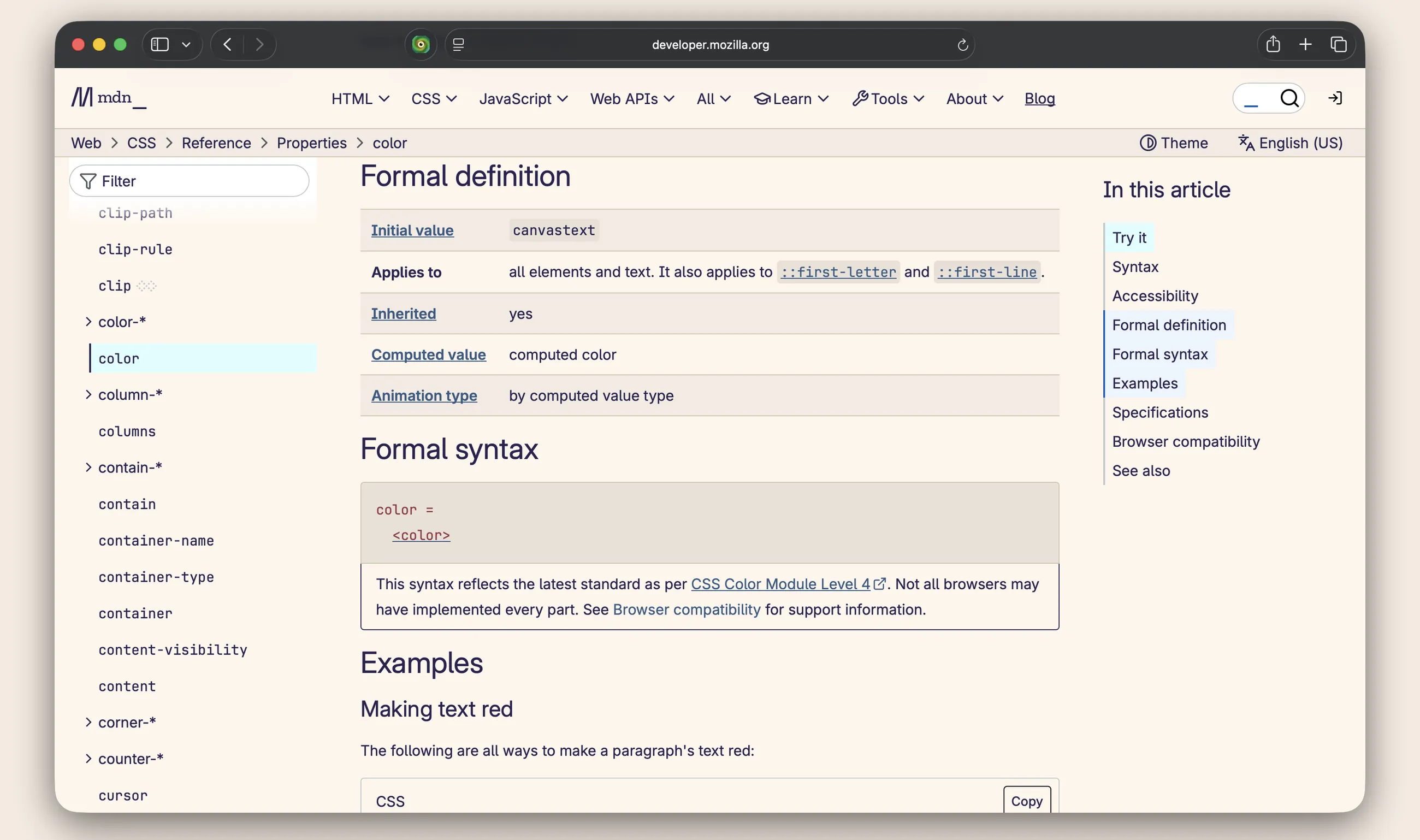
Cameleon recolours any site in Safari to one of five skins. Two light: Sunset's warm paper and Yardage Book's sage. Three dark, for reading at night. It changes colour and nothing else, so a page keeps the shape you already know how to read.
Buy — $2.99, onceDownload the 7-day trial
Watch the 20-second demo on YouTube
Seven days free, then one payment. No subscription.
 Or buy it on the Mac App Store, the same $2.99 — paid up front, so no trial.
Try it on a real page
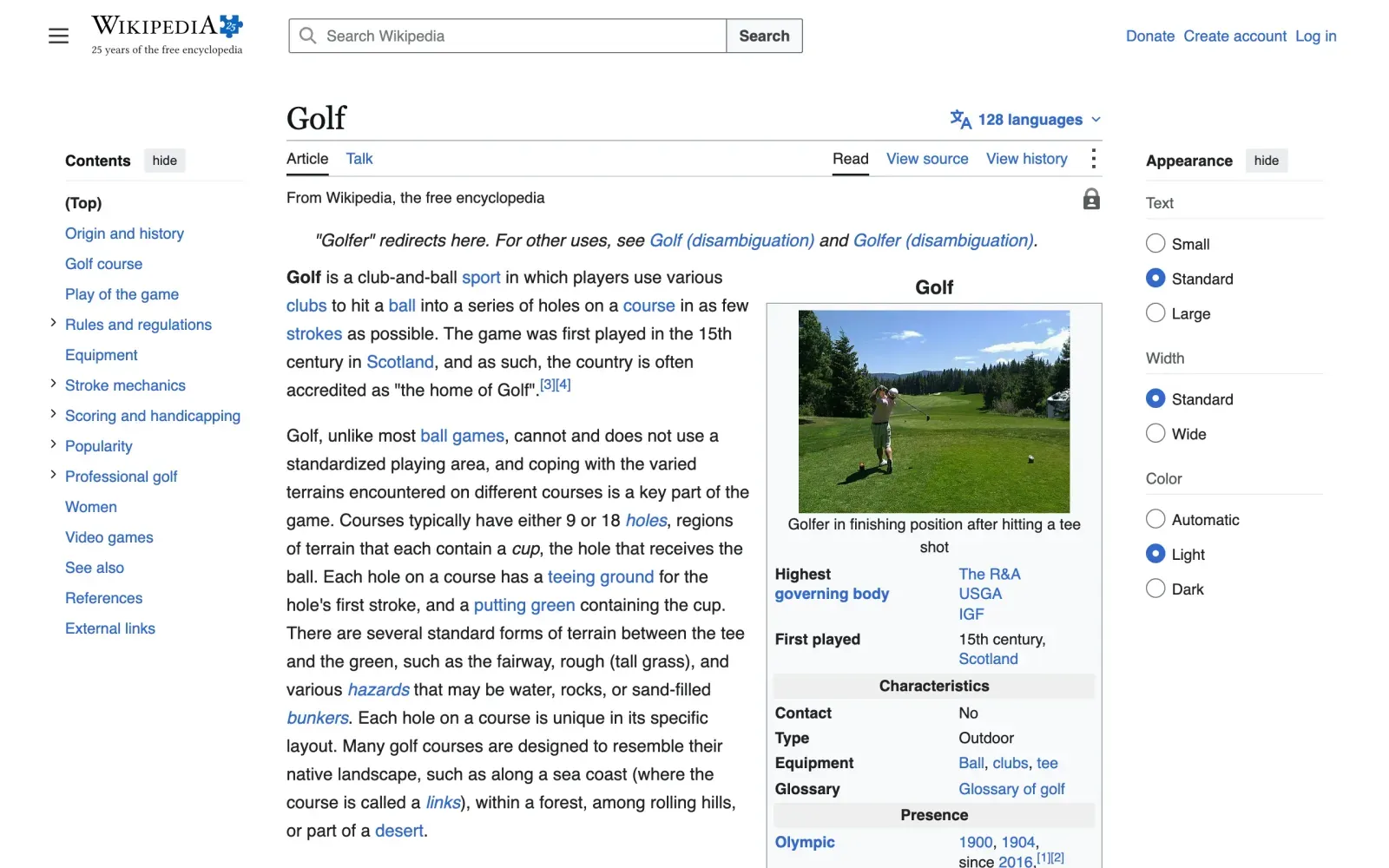
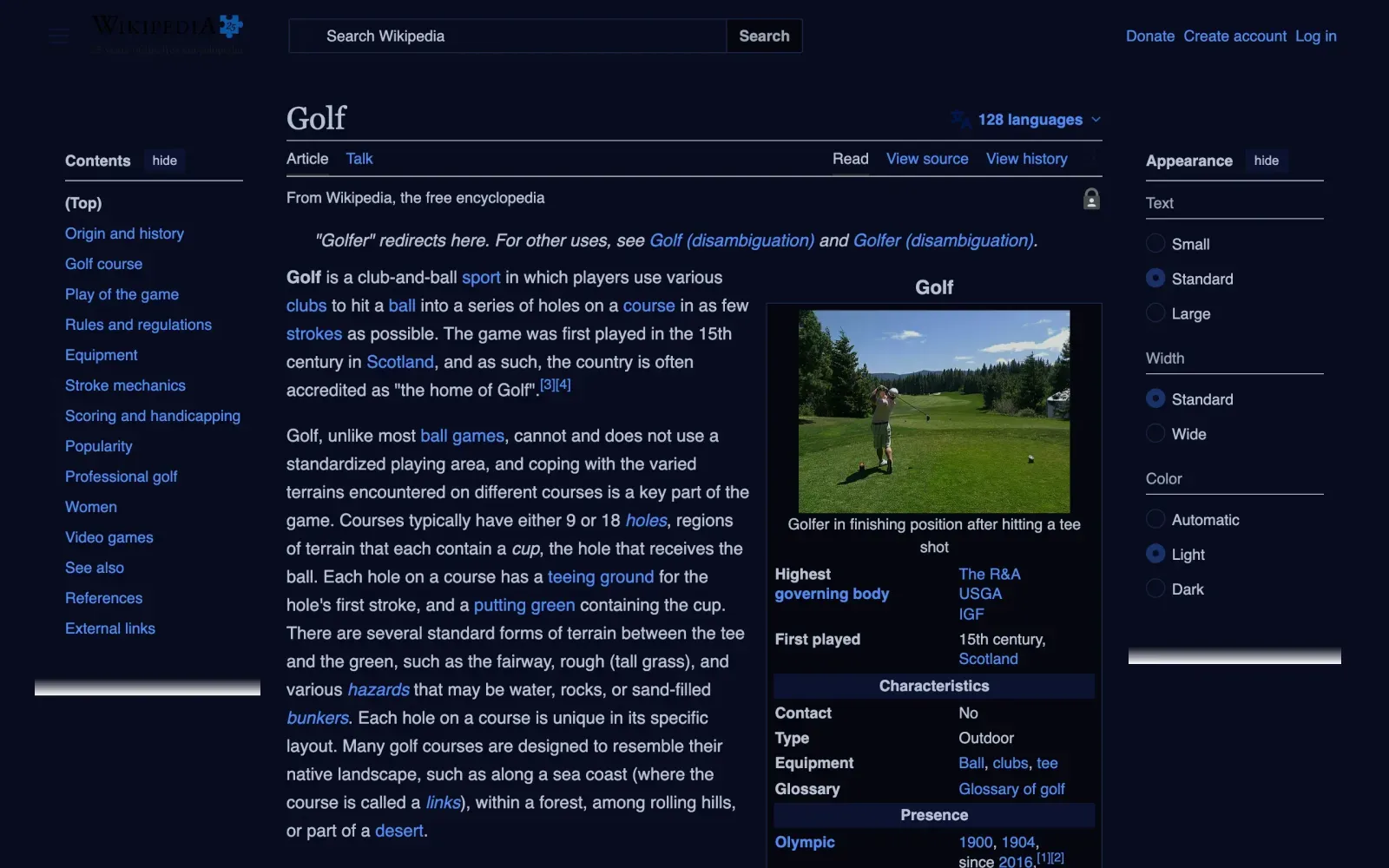
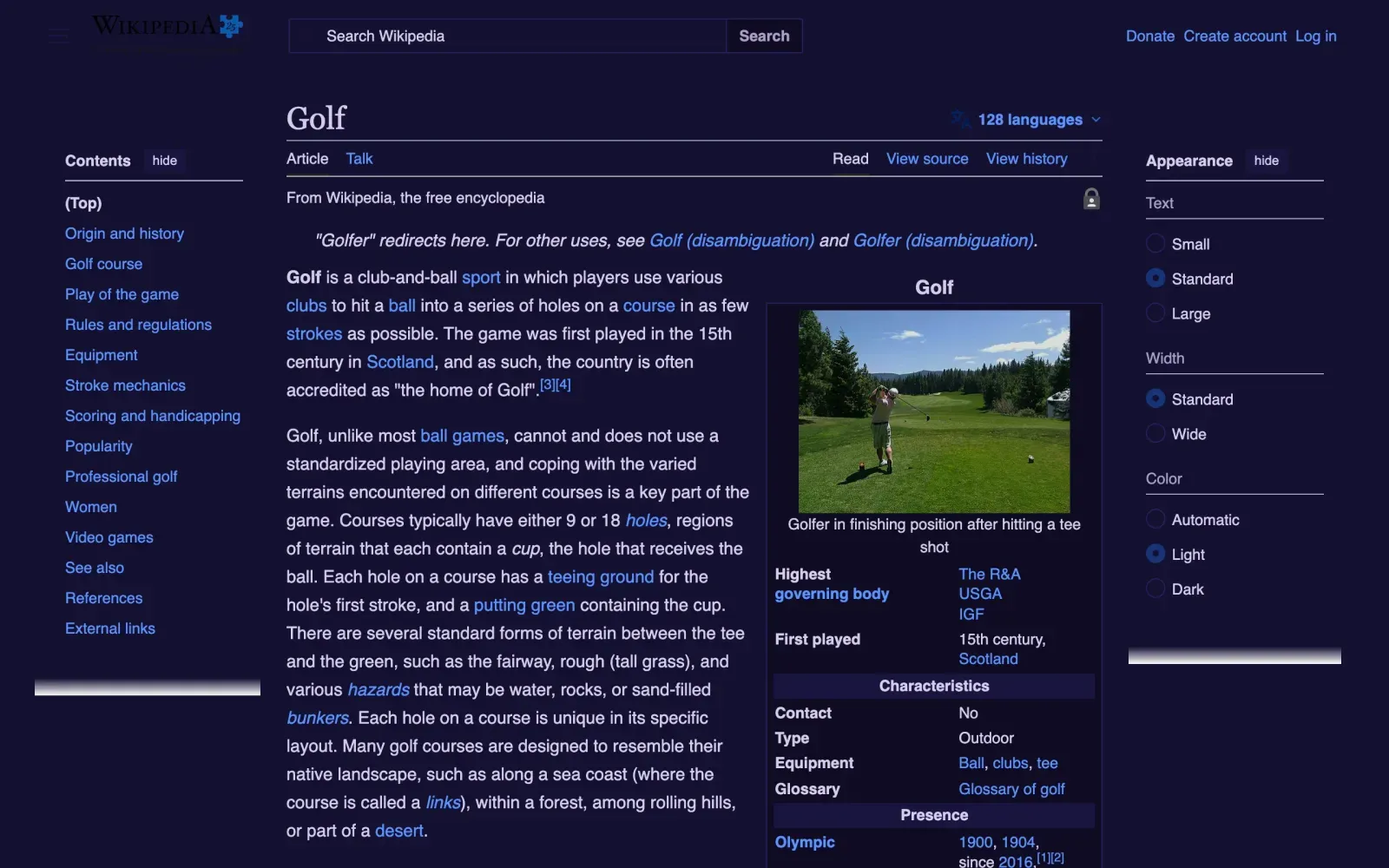
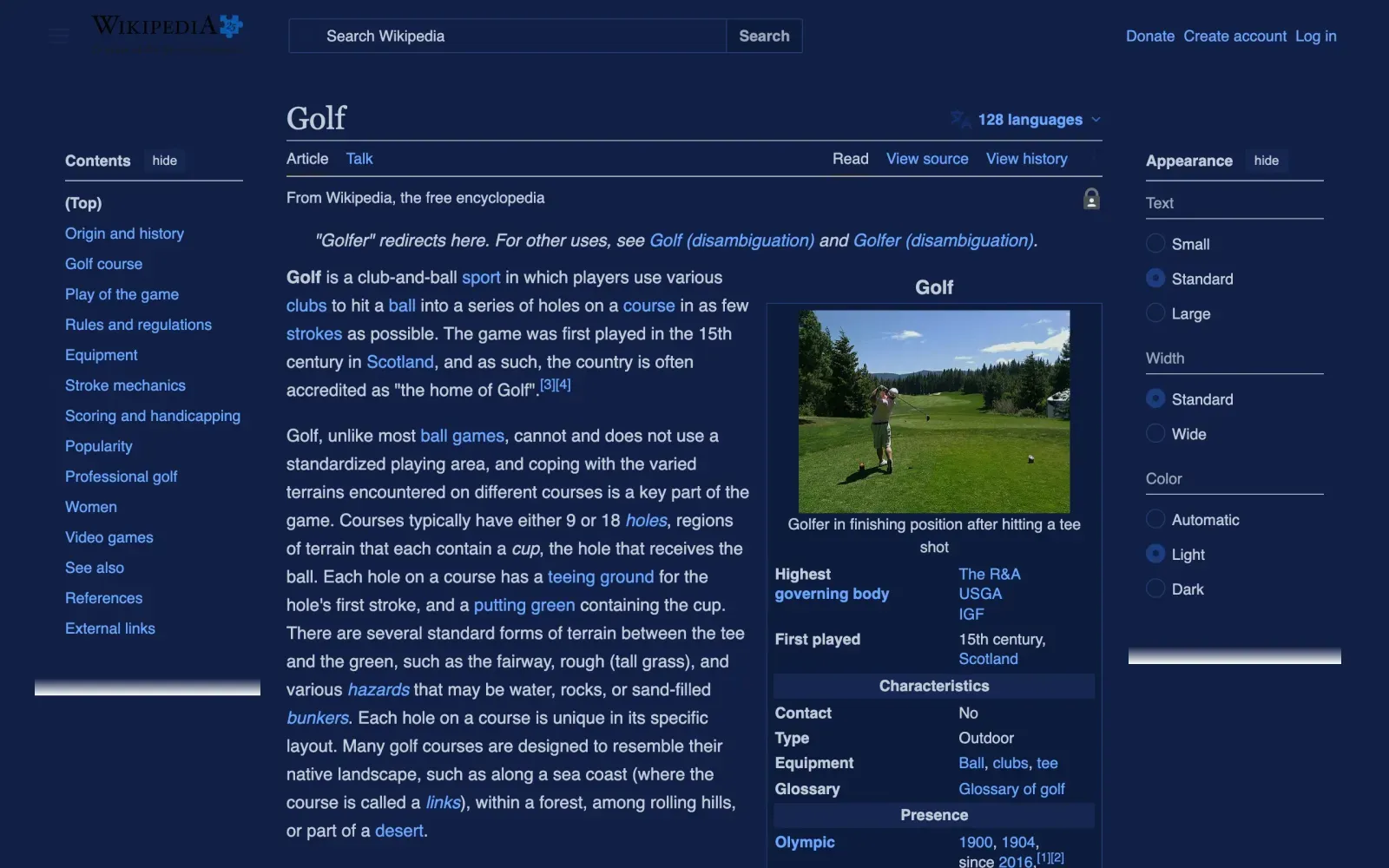
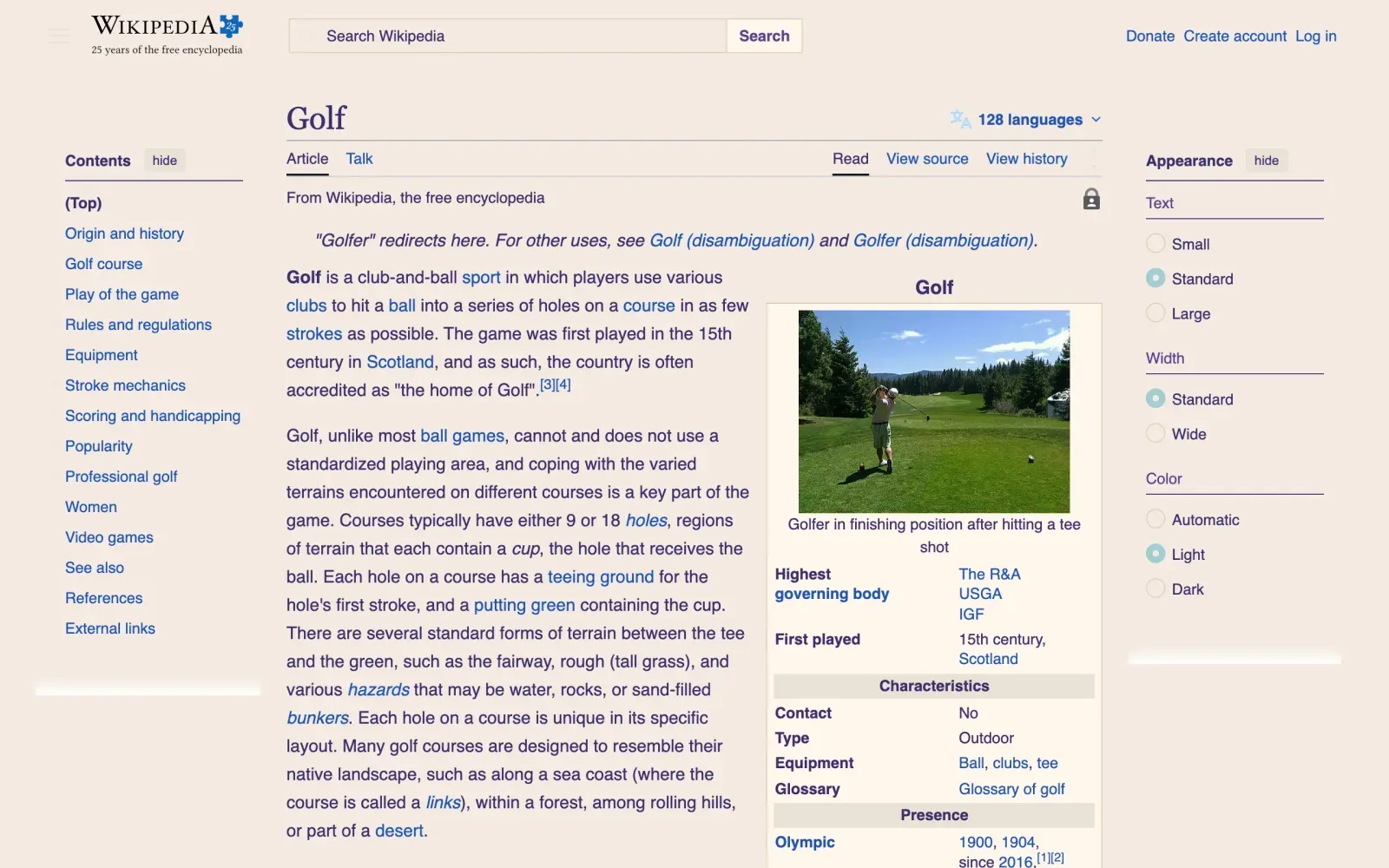
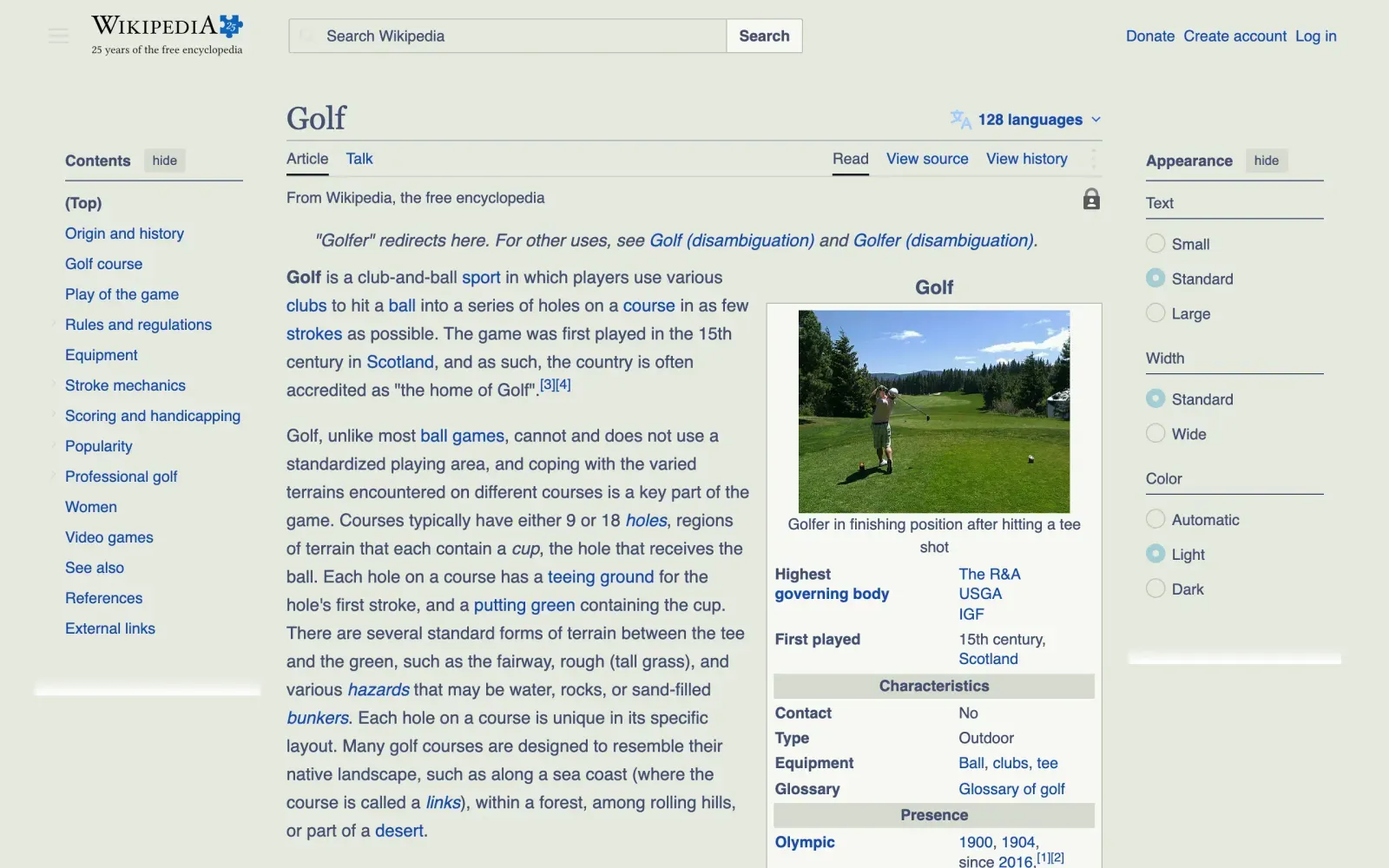
Captured and measured 3 November 2026 with Cameleon's own engine, on the real page. How it was measured.
Before you switch it on
What Safari's warning means
When you switch Cameleon on, Safari says it can read and alter sensitive information on webpages, including passwords, phone numbers, and credit cards, and see your browsing history
. Safari says that about every extension that can work on every site, because it describes what an extension is allowed to do. Here is what Cameleon does with it.
What it reads
- The colour each thing on the page is drawn in: text, backgrounds, borders.
- The site's address, such as example.com, to look up the skin you chose for it.
- Whether the page is already dark, so a dark skin can leave a site's own dark mode alone.
What it changes
- Colours, through a stylesheet it adds to the page. Layout, text, fonts and links stay as they are.
- Under a dark skin, pictures and video are dimmed a little, to 85–90% brightness, so they sit quietly on the darker page. The light skins leave them alone.
What it never does
- Read what a page says or what you type. Text, form fields and passwords are never looked at.
- Send anything anywhere. The extension has no networking code and no permission to open a connection.
- Keep a history. The only addresses it stores are the sites you chose a skin for.
Only on the sites you choose
- Open Safari ▸ Settings ▸ Extensions, select Cameleon and click Edit Websites…
- Set “When visiting other websites” to Ask, or to Deny.
- On a site you want recoloured, click Cameleon in the toolbar and choose Always Allow on This Website.
Five skins
Midnight Dark
Deep navy and neon cyan.
Dusk Dark
Coral and violet on deep indigo.
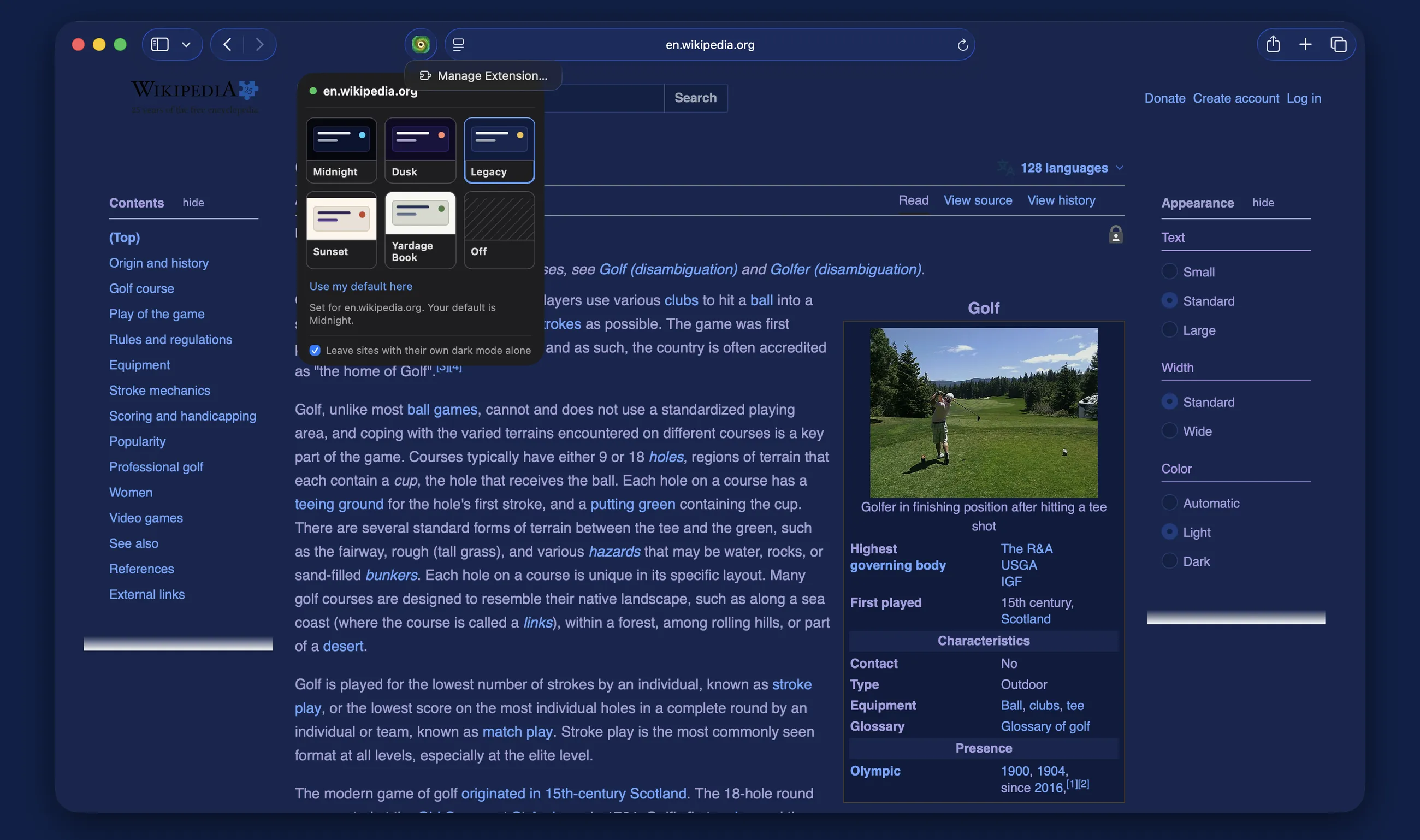
Legacy Dark
Championship navy and gold.
Sunset Light
Warm paper with indigo type.
Yardage Book Light
Sage paper and technical-pen navy.
All five are lifted from Caddora's other apps rather than invented, so each one is a palette something already ships with: Midnight, Dusk and Sunset from RefreshYourMac, Legacy and Yardage Book from Caddora Golf.
Dark mode, for sites that have none
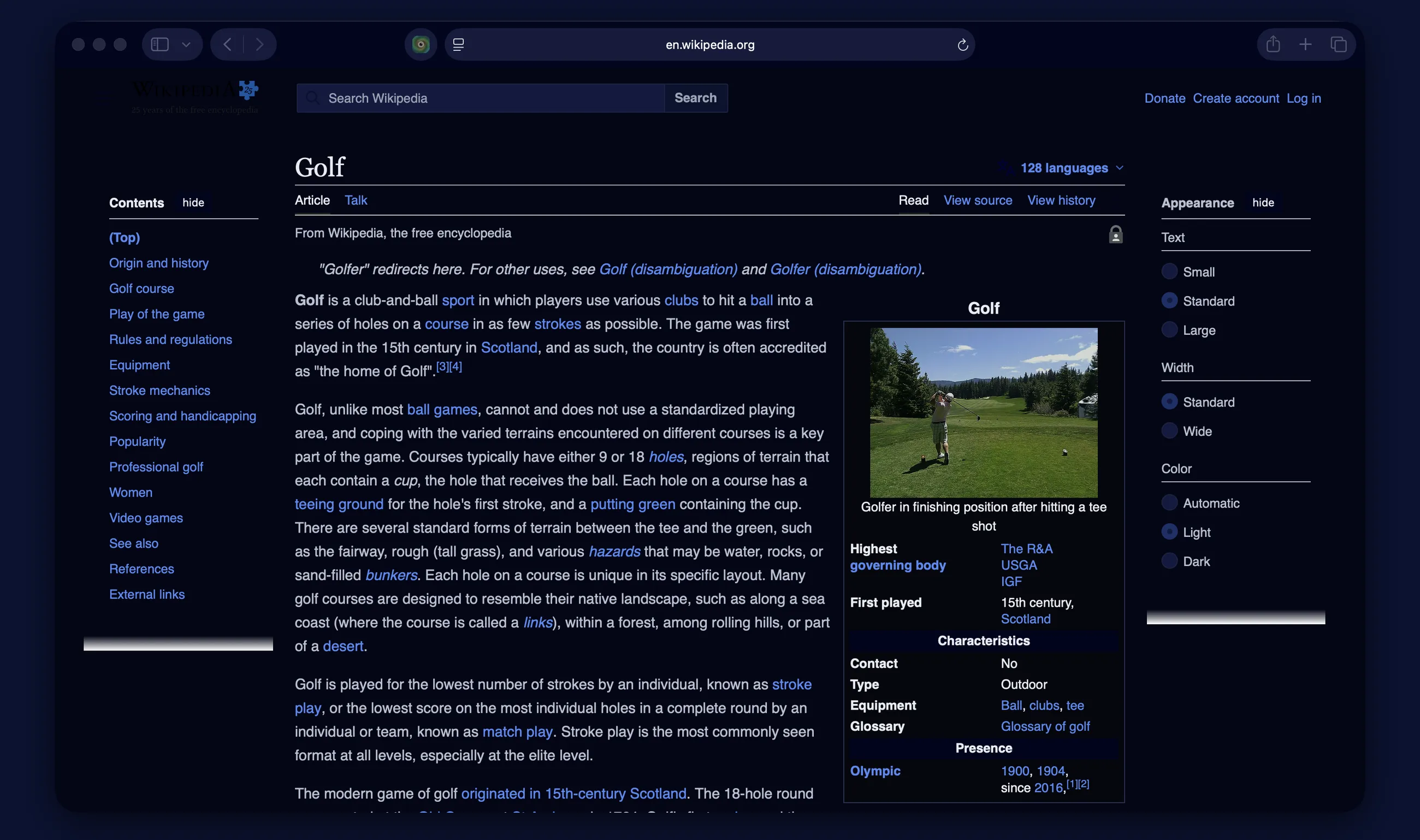
A readable night without waiting for the site to add one
- Midnight, Dusk and Legacy recolour a bright site for reading after dark.
- Surfaces stay apart: a site that stacks four shades of grey comes out with four you can still tell apart, rather than one flat field.
- A coloured header keeps its hue and moves to the skin's lightness, so a brand stays recognisable.
And the other way round
Light skins, for a site that is already dark
- Sunset and Yardage Book go ahead on a page a dark mode would leave alone.
- On Daring Fireball, which is dark only, both light skins pass every piece of text on the page at WCAG AA contrast. Its logo is a picture, and pictures are left as they are, so the logo stays white.
- A dark skin stands back from a site with its own dark mode, because two dark themes fighting reads worse than one.
- Hovering a skin previews it on the page in front of you; choosing it makes it stick for that site.
One click, and it is remembered
A different skin per site, and a default for each appearance
- Pick a skin for a site and it is that site's skin from then on.
- Everywhere else follows one skin for your Mac's light appearance and another for its dark.
- Shortcuts actions, a Focus filter and an optional menu bar item can set a skin too — Yardage Book while Work is on, say.
The part that is measured
The contrast is measured, not hoped for
Recolouring a page is easy to do badly: swap the background and some text goes to grey on grey. Every foreground Cameleon emits is re-lit until it reads at least 4.5:1 against the furthest surface in the skin, so the floor holds on a raised card and not only on the page behind it.
On a Wikipedia article, 18 pieces of text fail that bar in the site's own colours. Skinned, none do, in any of the five skins. Every skin's colours and the measurements on 15 popular sites, dated.
Dark mode for the sites you read
A page each for Wikipedia, BBC News, Hacker News, GitHub, CNN, The Guardian, The Verge, Ars Technica, RTÉ News, W3Schools, Python documentation, DEV Community, NASA, MDN Web Docs and Daring Fireball: the site in its own colours and in all five skins, what it offers by itself, and the contrast before and after. All of them.
For every other site: how to make websites dark, or light, in Safari, Safari's own ways first. And if you are choosing: Cameleon and Dark Reader compared and Cameleon and Noir compared, including what each does that Cameleon doesn't.
Privacy, and what it costs
Nothing you read leaves your Mac. Colours are read and replaced in your own browser. The extension has no networking code in it and no permission to open a connection, so there is nowhere for a page, an address or a colour to go. No account, no analytics, no adverts, and no record of what you read.
The one exception is the licence, and it is in the app rather than the extension: the downloaded edition sends your key and a name for the Mac to the shop when you paste it in, which is how one licence covers two Macs. There is no check at launch and nothing periodic. The App Store edition has no licence and makes no connection at all. The privacy policy sets out both.
$2.99, paid once. Seven days free first, then one payment — no subscription and nothing to renew.
Cameleon is made by John Sheehy at Caddora, a studio in Ireland. The studio also makes Folio Refresh, a duplicate photo cleaner for Mac that is also bought once, and its how-to guides cover all of its apps.
Requires macOS 13 or later, with Safari. You switch the extension on in Safari ▸ Settings ▸ Extensions and decide which sites it may touch. Support · Privacy policy · What changed in each version
Questions
How do I change a website's colours in Safari?
Install Cameleon, switch it on in Safari ▸ Settings ▸ Extensions, and give it access to the site. Click its button in the toolbar and choose one of five skins. The page is recoloured immediately, and that choice is remembered for that site.
Is this a dark mode extension for Safari?
It is that and the other way round. Three of the five skins are dark, for reading at night. Two are light, which is the part a dark mode cannot do: a site that is already dark, turned to warm paper or to sage and navy.
What happens on a site that already has its own dark mode?
A dark skin leaves it alone on purpose — you already have what you asked for, and two dark themes fighting each other reads worse than one. A light skin goes ahead on that same page. You can also choose a skin for that site specifically and it applies regardless.
Will it make text harder to read?
The opposite is what it is built around. Every colour Cameleon puts on a page is re-lit until it reads at least 4.5:1 against the furthest surface in the skin, so the floor holds on a raised card and not only on the page behind it. On a Wikipedia article, 18 pieces of text fail that bar in the site's own colours; skinned, none do, in any of the five skins.
Does it change fonts or layout?
No. Colour only — no type moved, no layout changed, nothing hidden — so a page keeps the shape you already know how to read. Photographs keep their colours; under a dark skin, pictures and video are dimmed a little so they sit quietly on the darker page.
Can I use a different skin on different sites?
Yes, and that is the normal way to use it. A skin chosen for a site is remembered for that site. Separately you can set one skin for your Mac's light appearance and another for its dark, which Cameleon follows when you have made no choice for the site in front of you.
Why does Safari say Cameleon can read passwords and credit cards?
Safari says that about every extension that can work on every site: it can read and alter sensitive information on webpages, including passwords, phone numbers, and credit cards, and see your browsing history. It describes what an extension is allowed to do, not what it does. Cameleon reads the colour each thing on a page is drawn in and the site's address, and nothing else: never the text, never a form field, never a password. The extension has no networking code, so nothing it sees can leave your Mac. You can also limit it to the sites you choose.
Does Cameleon collect any data?
No. The extension — the half that sees your pages — has no networking code in it and no permission to open a connection, so there is nowhere for a colour, an address or a page to go. Nothing is collected, there is no account, no analytics and no adverts, and no record of what you read. The only connection Cameleon ever makes is in the downloaded edition, where the app checks a licence key with the shop once, when you paste it in.
Can I try it before buying?
Yes. The download from this page runs for seven days with everything switched on. When the trial ends the skins stop applying and the rest of the app carries on — a skin you chose for a site is remembered and comes back the moment a licence is in. A licence covers two Macs and you can move it between them.
Is there a subscription?
No. Cameleon is a one-time purchase of $2.99, with no subscription, no account and no adverts. The Mac App Store edition and the download are the same price and the same app. The difference is only how you start: the download gives you seven days first, and the Mac App Store charges the $2.99 up front.