



CaddoraHome

Folio Refresh

Photo cleaner for Mac · Duplicate & similar photos

Clean up duplicate photos on your Mac. Keep the best shot.

Folio Refresh is a duplicate photo cleaner for Mac. It clears identical copies, edited versions and bursts from your folders, Photos library, Lightroom Classic and Capture One, suggests the one to keep, and moves nothing until you say so. Clean your first 100 photos free, then pay once. No subscription.

Free to try: scan, review and clean your first 100 photos. Then $14.99 once, no subscription. For macOS 15 or later, Apple silicon and Intel.

Download on the Mac App StoreOr get it from the Mac App Store: the same free 100 photos, the same price.

New in 1.1 · 30 October 2026 Made for touch-screen Macs. Bigger, shorter text, and every button and explanation works with a tap. What changed in each version

Nothing moves without your approval

  1. 1. FindAdd folders, or choose your Photos library, a Lightroom Classic or a Capture One catalog. The scan reads them on your Mac and changes nothing.
  2. 2. ReviewEach group shows every copy, where it is, and the one to keep with the reason. Choose another to keep, or lock any copy.
  3. 3. ApproveA last summary, with Cancel as the default. Nothing moves until you confirm, every group keeps a copy, and every photo can be put back.

Your first 100 photos are free to clean

Scanning and reviewing cost nothing. Each photo you then act on counts as one of the 100, whether it goes to the Trash, into the Photos review album, or is marked in a catalog. A photo that is skipped costs nothing. After 100, it is $14.99 once.

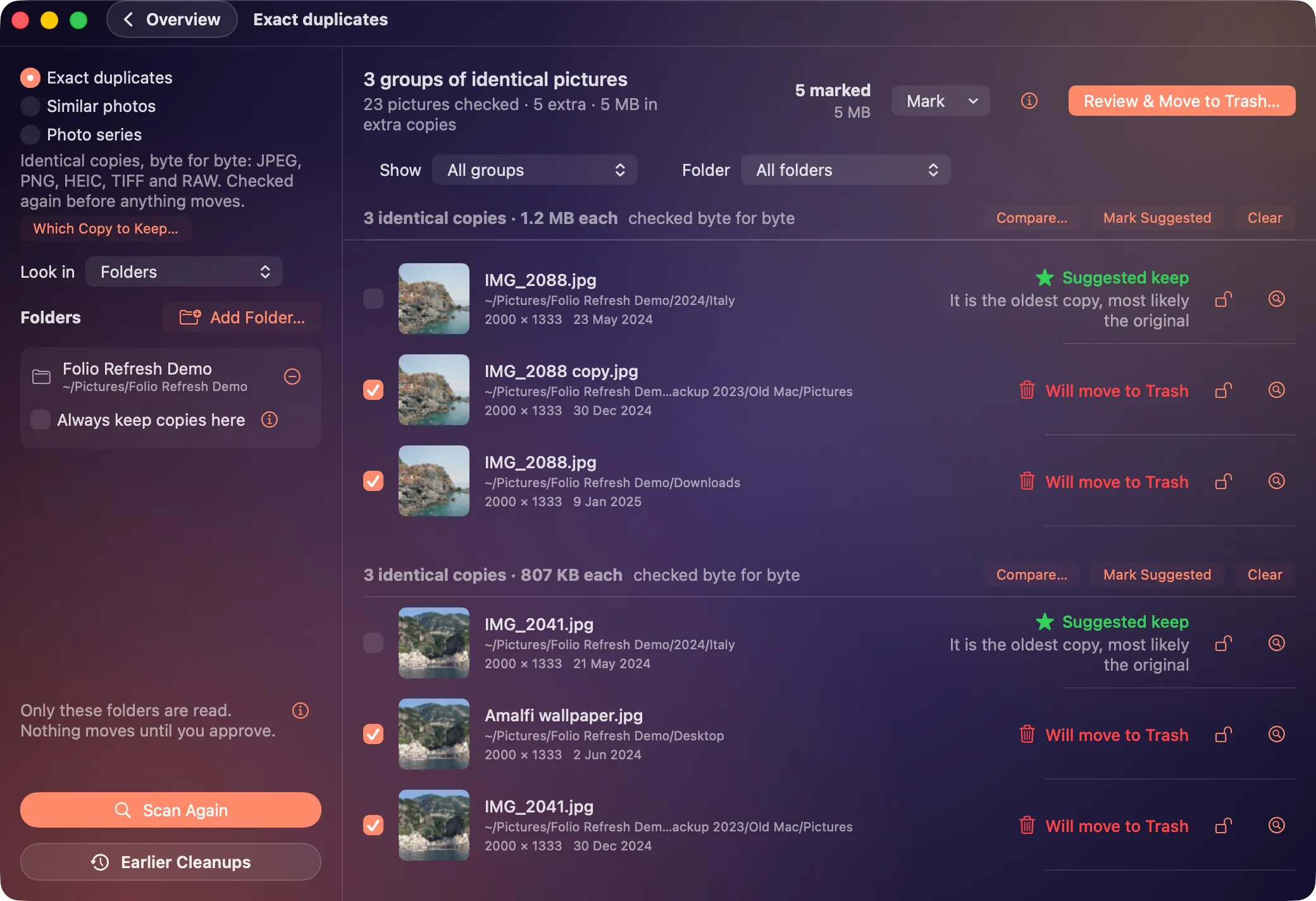
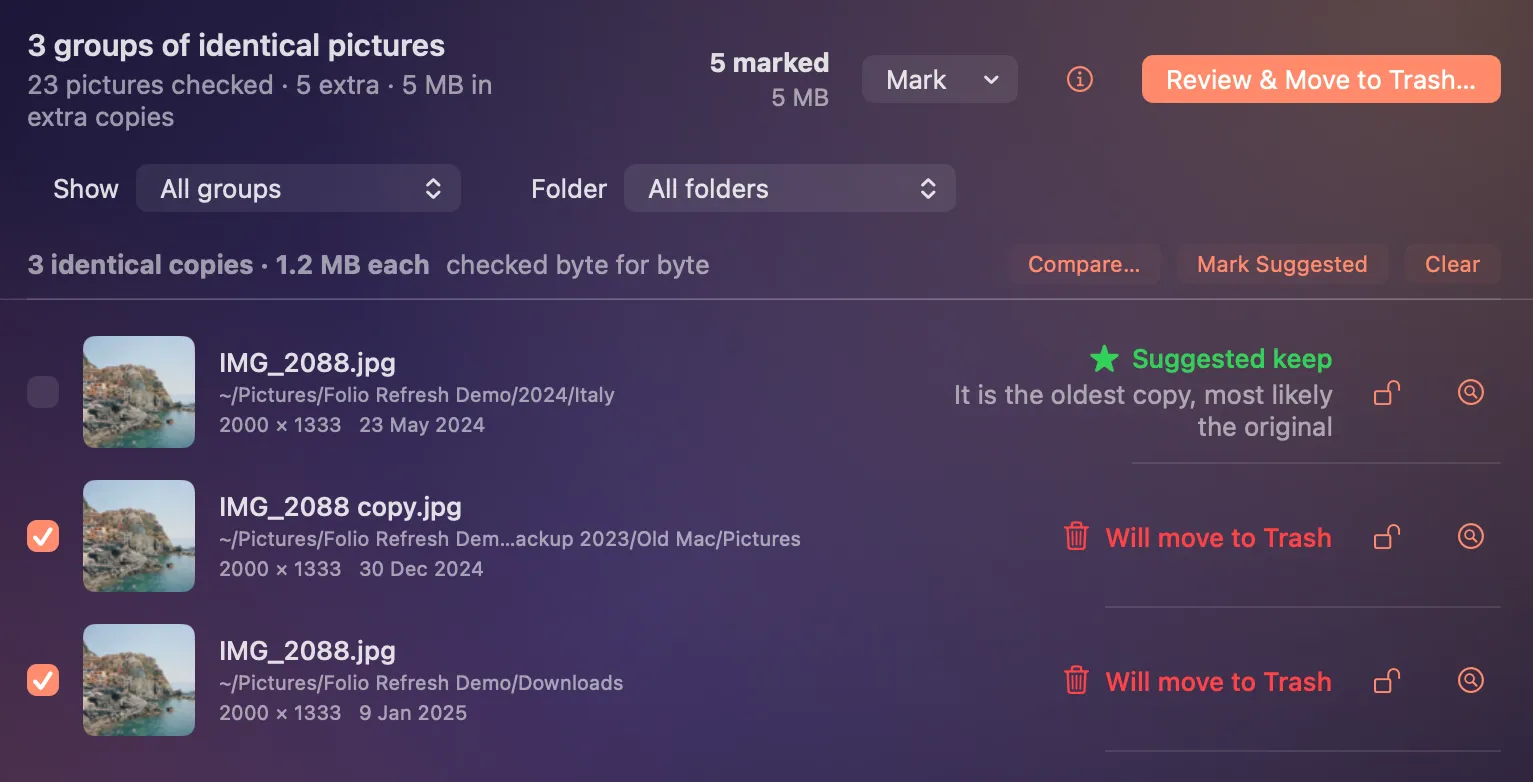
Folio Refresh reviewing a folder: groups of identical photos, each with the oldest copy marked Suggested keep and the other copies marked Will move to Trash, 5 marked
1. Review. One folder scanned: each group keeps the oldest copy and says why. Five extra copies marked.
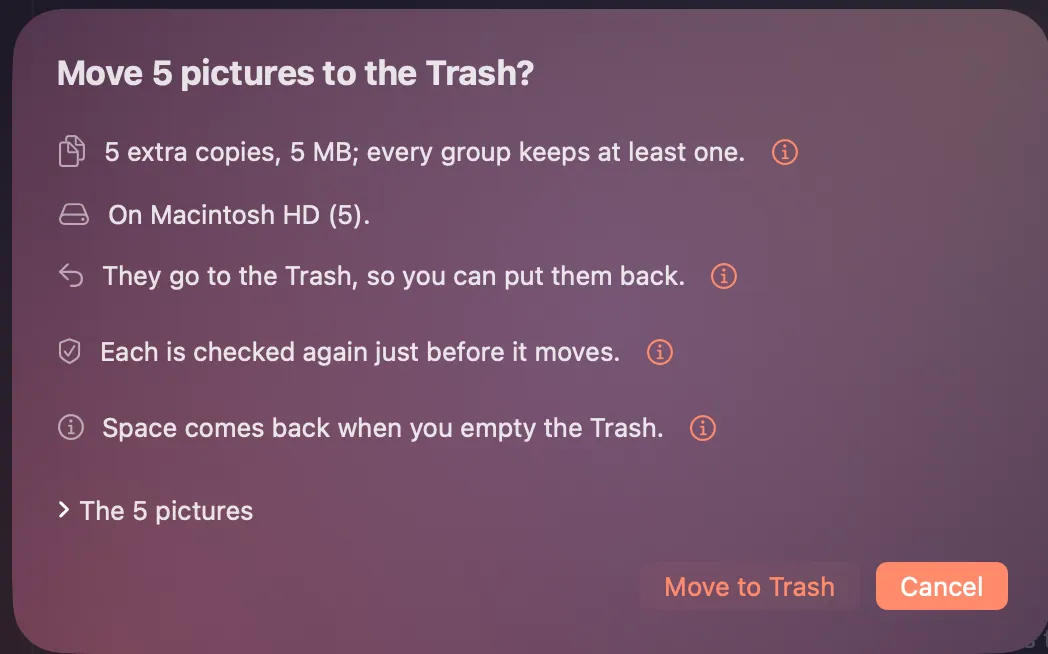
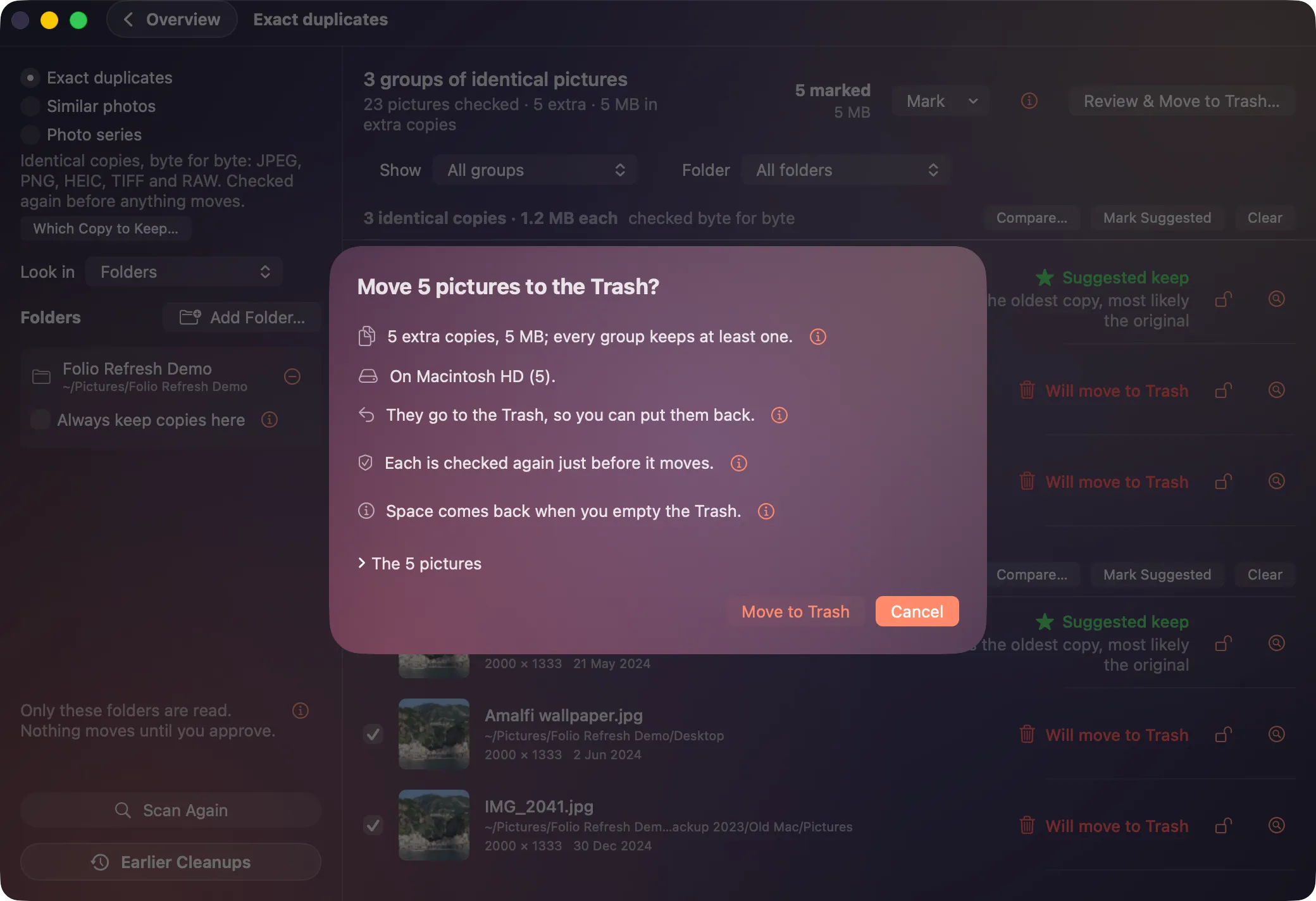
Folio Refresh asking Move 5 pictures to the Trash?, saying every group keeps a copy and each can be put back, with Cancel as the default button
2. Approve. Nothing has moved yet, and Cancel is the default. Moving these five would use 5 of the free 100.

The real app on a demo folder of photos from Pexels.

What it reads

  • The folders you choose, on your Mac or a connected drive, and nothing outside them.
  • Your Photos library, only if you choose it, after macOS asks you.
  • A Lightroom Classic or Capture One catalog you choose.

What it changes, only when you approve

  • Folders: the copies go to the Trash.
  • Photos: they go into a “Folio Refresh Review” album, for you to delete in Photos.
  • Catalogs: they are marked Rejected or tagged Red, while the app is closed and after a backup.
  • Shrink: an original goes to the Trash once its smaller version is checked; in Photos, macOS asks first.

What it never does

  • Delete a file outright.
  • Touch a photo that changed after the scan: each one is checked again first.
  • Send a photo anywhere. Everything is read on your Mac, with no account and no tracking.
  • Download from iCloud, unless you choose to.

A folder clean-up and a catalog clean-up are different jobs

Where the photos areWhat Folio Refresh doesHow you finishChanging your mind
Folders and drivesMoves the copies you approve to the Trash.Nothing else to do. The space comes back when you empty the Trash.Put any photo back from Earlier Cleanups or from Finder, until the Trash is emptied.
Apple PhotosAdds them to an album called “Folio Refresh Review”. Deletes nothing.Look over the album and delete in Photos, which asks you first and keeps them in Recently Deleted.Take a photo out of the album to keep it.
Lightroom ClassicMarks them Rejected, while Lightroom is closed, after backing up the catalog.Lightroom's own Delete Rejected Photos.Undo the marking from Folio Refresh, or use the backup beside the catalog.
Capture OneTags them Red, while Capture One is closed, after backing up the catalog.Filter by the Red tag and delete in Capture One.Undo the tagging from Folio Refresh, or use the backup beside the catalog.
  1. The 30-second demoA scan, the groups it finds, the photo to keep, and putting one back. Watch it on YouTube →

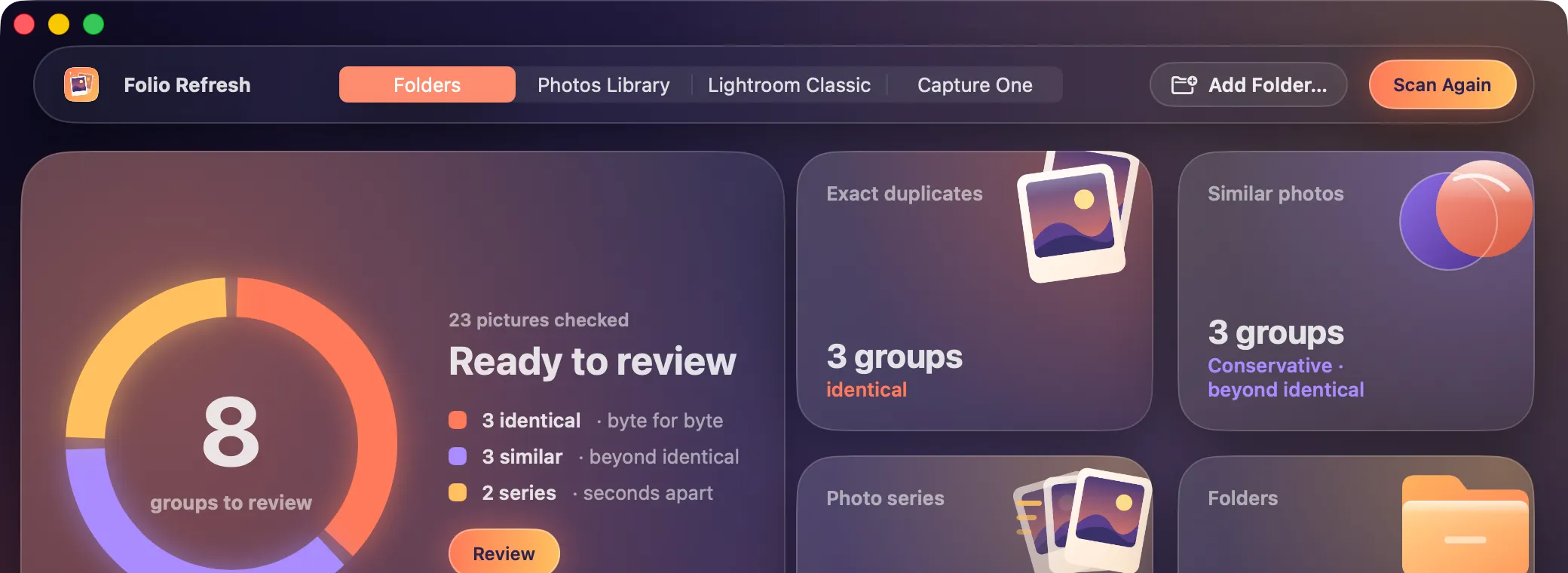
  2. Folio Refresh's main screen after a scan: 8 groups to review, with identical copies, similar photos and photo series counted

    The main screenEverything a scan found, counted by kind, with the tools along the bottom.

  3. Folio Refresh listing groups of identical photos, each with one copy suggested to keep

    Every copy, wherever it isRenamed and scattered copies, grouped, with the one to keep and the reason. How it works →

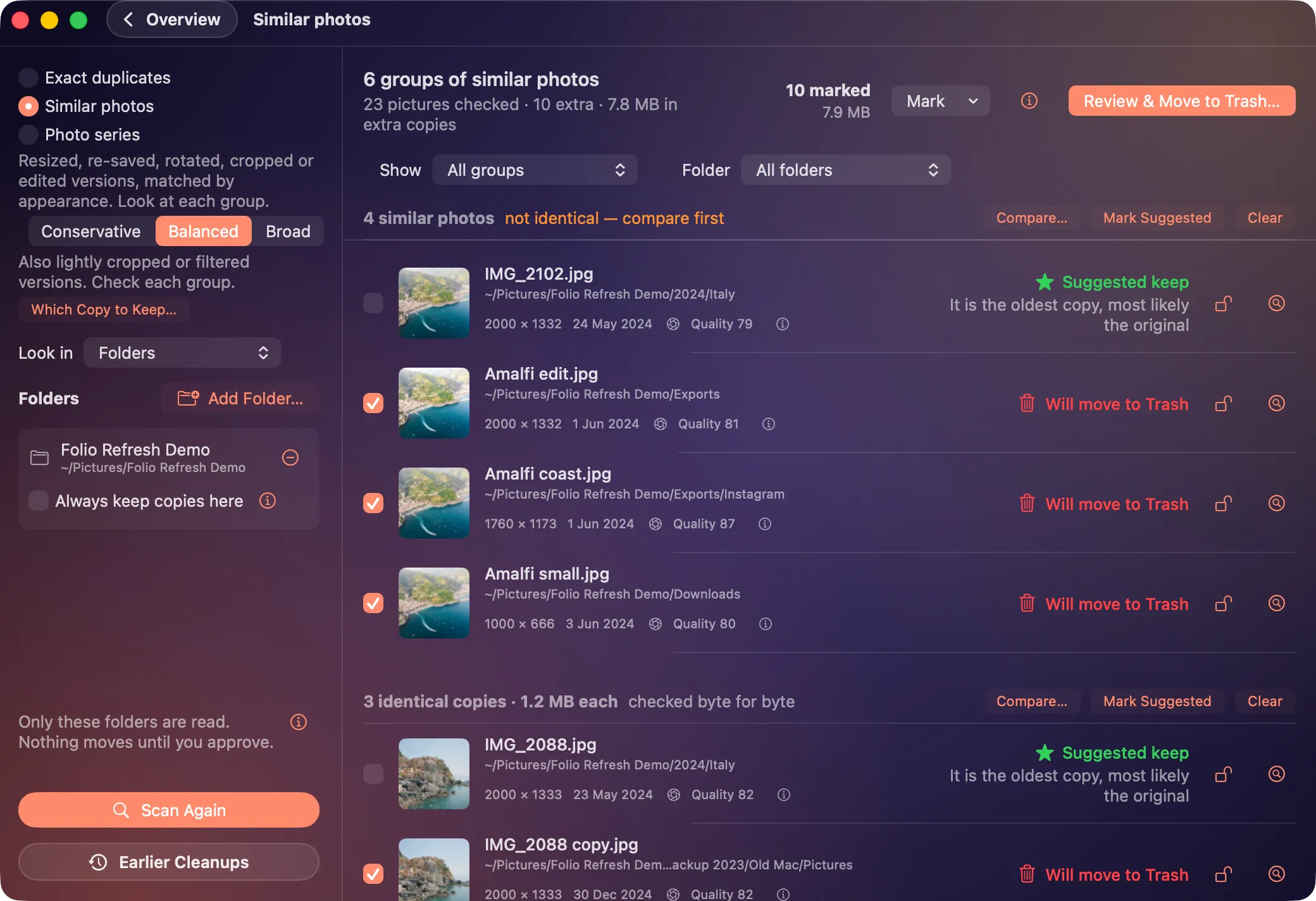
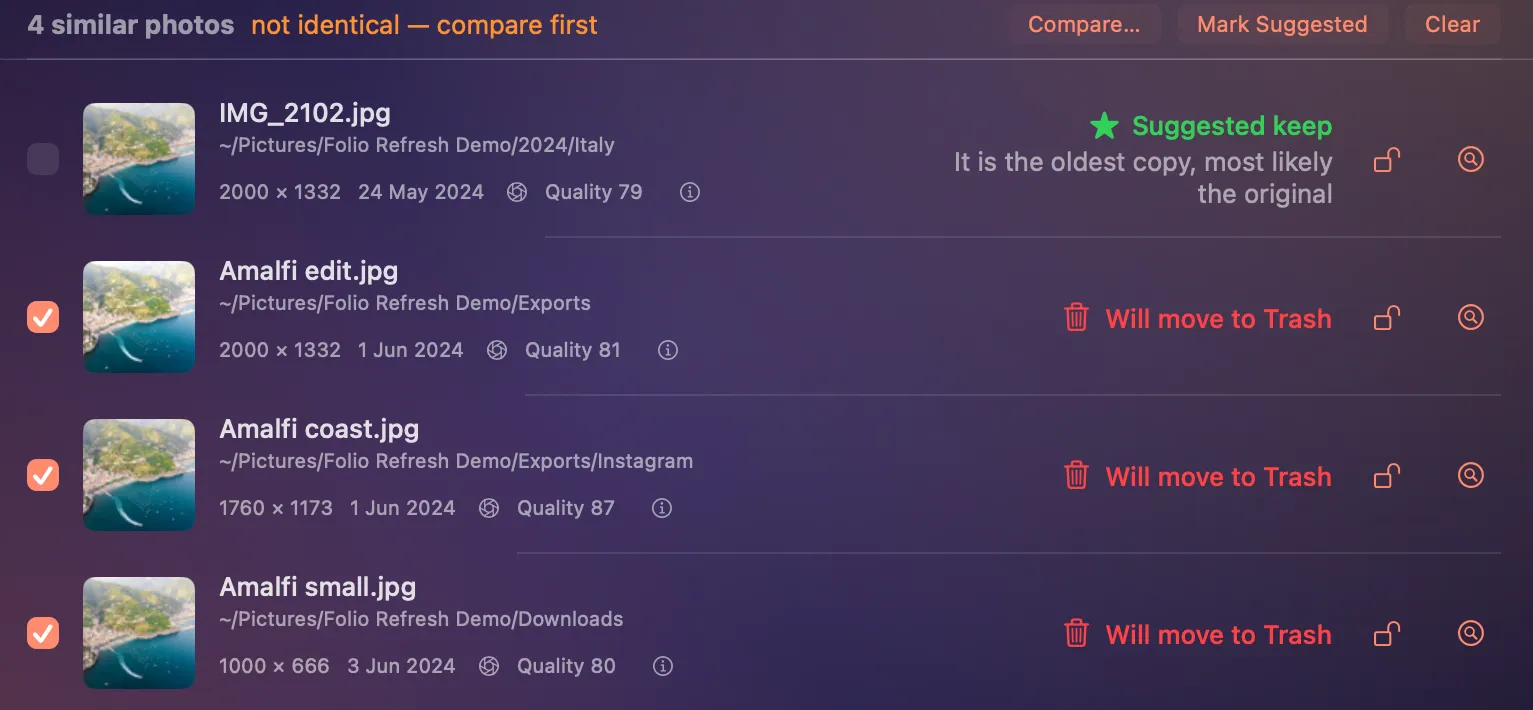
  4. Folio Refresh grouping a photo of the Amalfi coast with its edited, cropped and smaller copies

    Edited and resized versions tooCropped, brightened and re-saved copies that other finders miss. How it works →

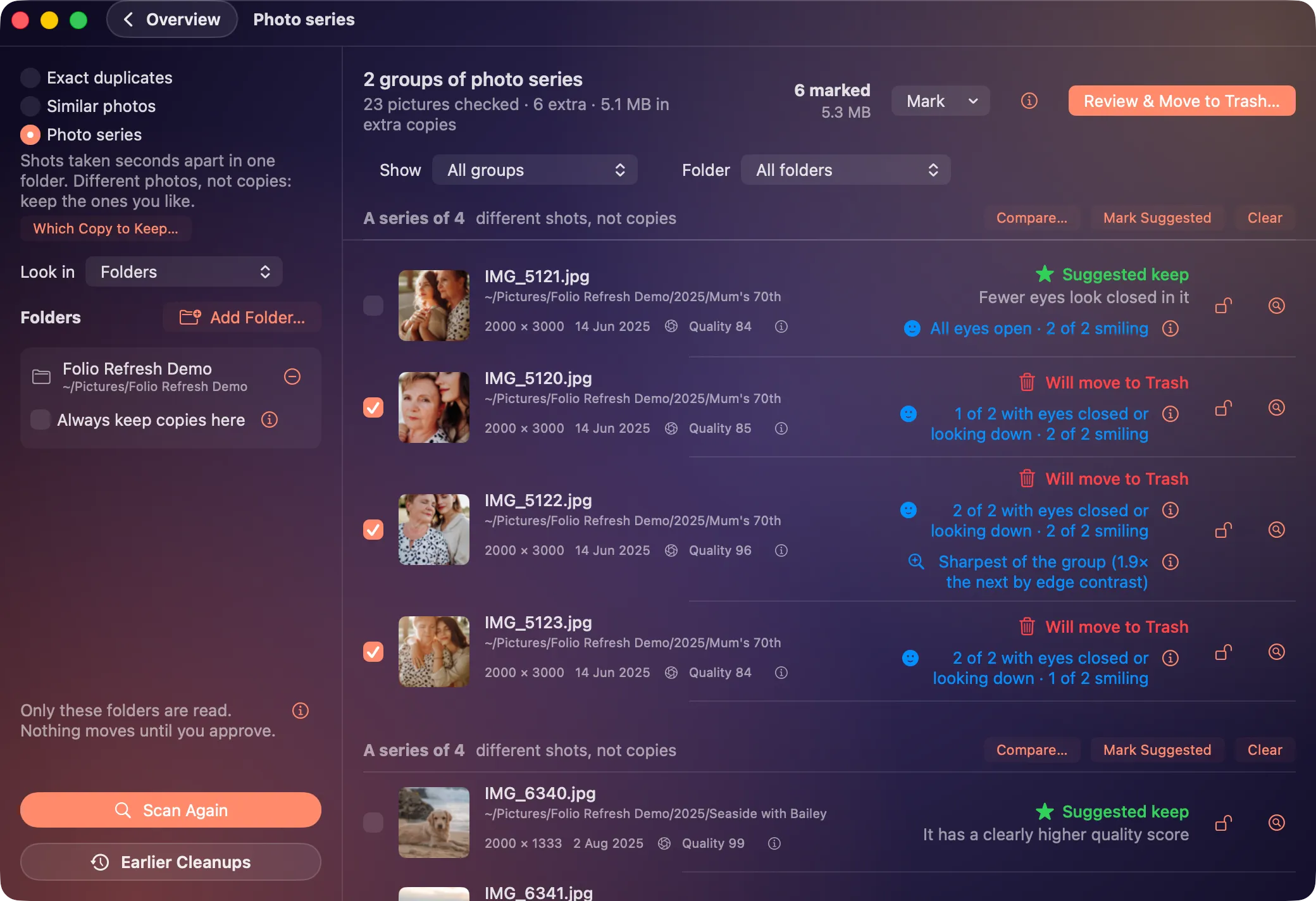
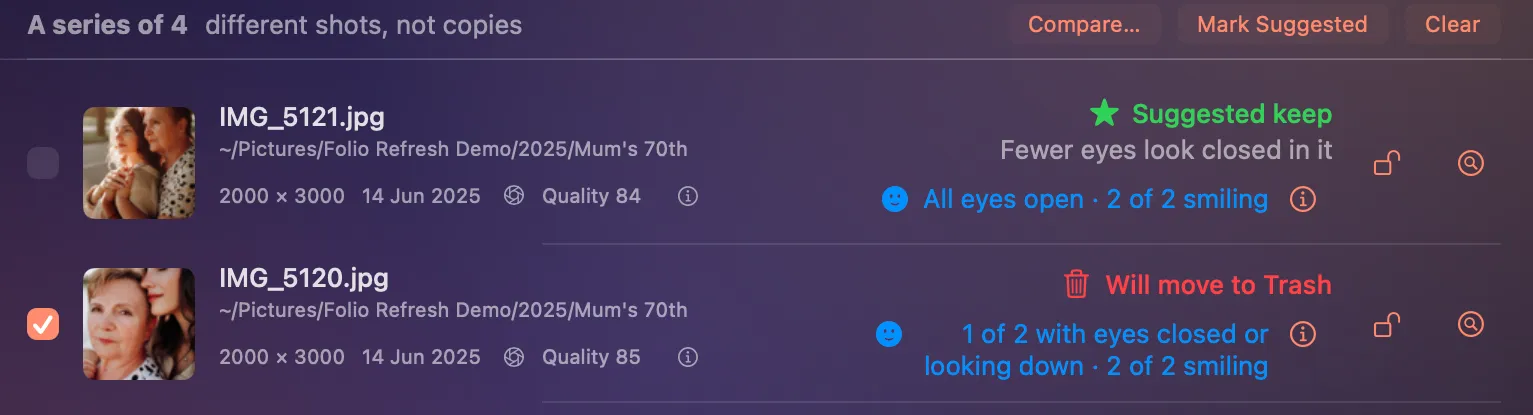
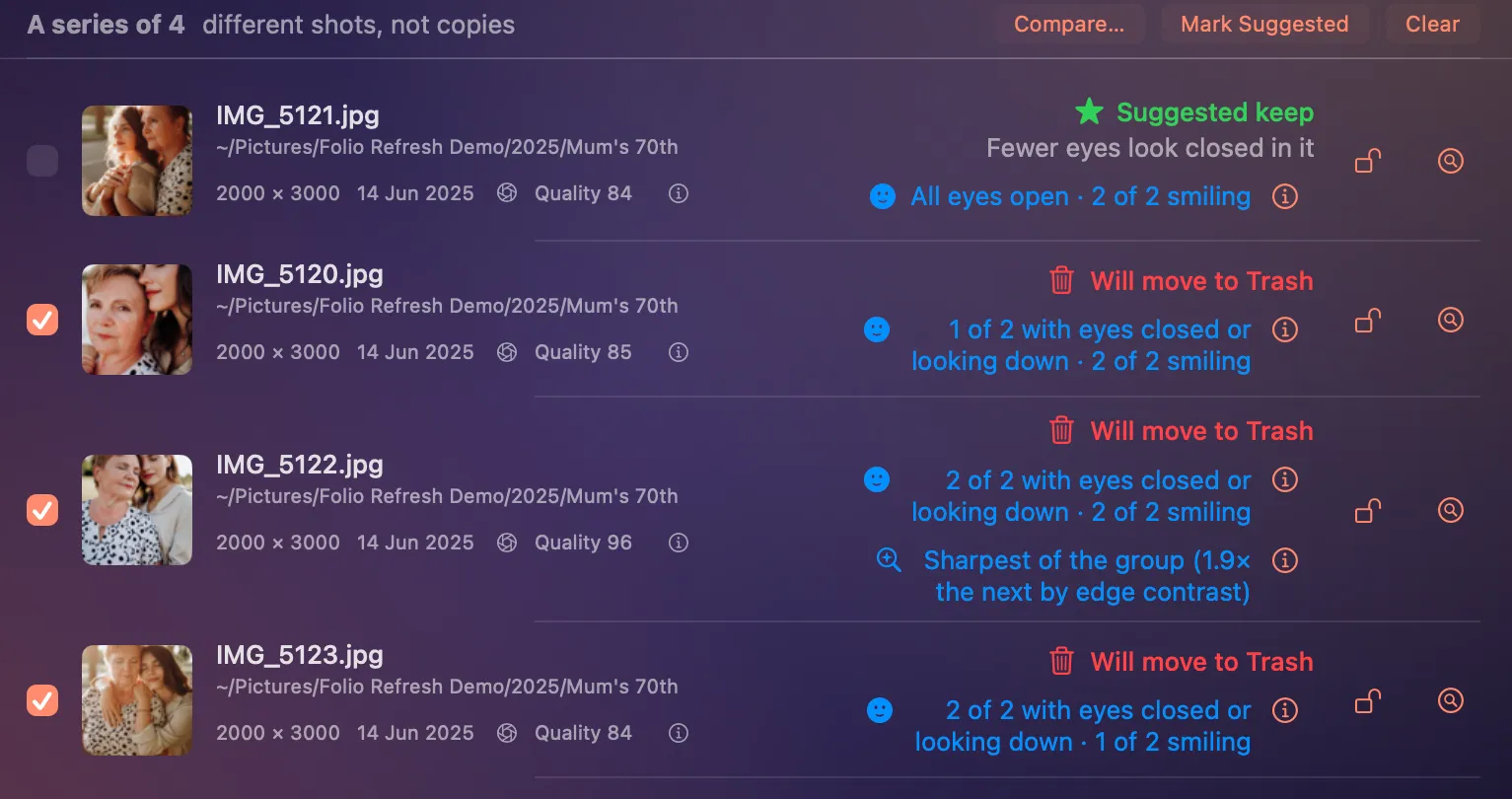
  5. Folio Refresh suggesting the one frame of a family burst where everyone's eyes are open

    The best frame of a burstShots taken seconds apart, and the sharpest one, eyes open, to keep. How it works →

  6. Folio Refresh's confirmation before moving photos to the Trash, with Cancel selected

    Nothing moves until you say soA last summary, Cancel by default, and every photo can be put back. How it works →

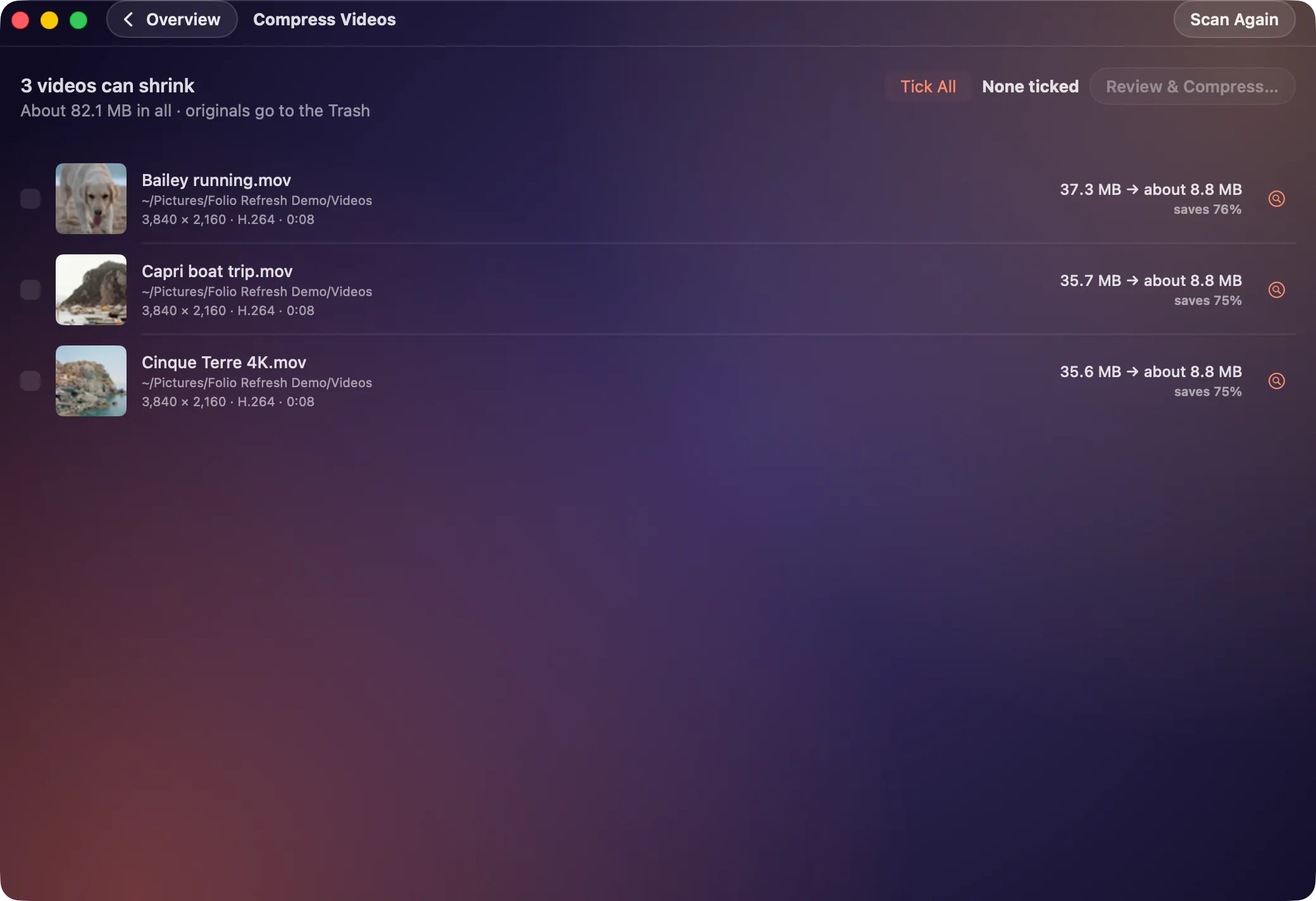
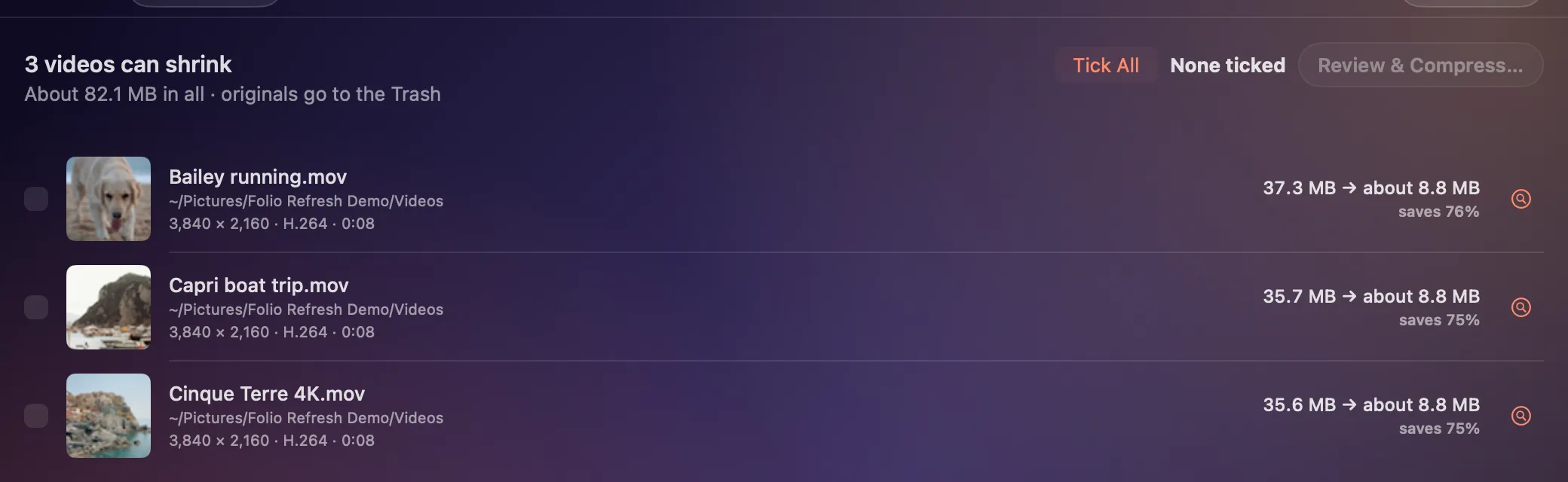
  7. Folio Refresh's Compress Videos screen: three 4K videos that would each shrink by about 76%

    Shrink what you keepBig videos to HEVC, JPEGs to HEIC, Live Photos to just the photo. How it works →

Identical copies

Find duplicate photos anywhere on your Mac

  • Finds every exact copy, renamed or not, in any folder or drive: Downloads, backups, exports, an old Mac's Pictures.
  • JPEG, HEIC, PNG, TIFF and camera RAW from Canon, Nikon, Sony, Fujifilm and more.
  • Each group shows where every copy is and keeps the original, usually the oldest.
How it works →
Folio Refresh listing groups of identical photos, each with one copy suggested to keep and the others marked for the Trash

Similar photos

A similar photo finder for edited, resized and cropped copies

  • Finds the same photo shrunk for email, cropped for a post, rotated or brightened, which byte-for-byte duplicate finders miss.
  • Conservative, Balanced or Broad, from near-exact to looser edits.
  • Compare any group side by side before anything moves.
How it works →
Folio Refresh listing groups of similar photos, including an edited, a cropped and a smaller copy of the same Amalfi coast photo

Bursts and series

Delete burst photos and keep the best frame

  • Groups shots taken seconds apart, so a burst becomes one decision instead of twenty.
  • Suggests the frame to keep: eyes open, sharper, higher quality.
  • Keep as many frames as you like; they are choices, not copies.
How it works →
Folio Refresh listing a family burst and a dog-on-the-beach burst, with one frame of each suggested to keep

Best-shot suggestions

Keep the best shot, and know why

  • Every group suggests the photo to keep and says why, in plain words.
  • Eyes open first, then Apple's photo-quality score, then the most pixels and the original.
  • Reorder the rules, lock any photo, or protect a whole folder.
How it works →
A Folio Refresh family burst where the frame with everyone's eyes open is suggested, ahead of one with a higher quality score

Photos, Lightroom and Capture One

Remove duplicates from Photos, Lightroom Classic and Capture One

  • Apple Photos: copies go into a “Folio Refresh Review” album to delete in Photos. Nothing is deleted for you.
  • Lightroom Classic: duplicates are marked Rejected. Capture One: tagged Red. The catalog is backed up first.
  • Folders and external drives too, all from one window.
How it works →
Folio Refresh's main screen, with tabs for Folders, Photos Library, Lightroom Classic and Capture One

Safe clean-up

Delete duplicate photos safely, and undo any time

  • Nothing moves until you approve it, and Cancel is the default.
  • Every group keeps at least one copy; every photo is checked again before it moves.
  • Moved photos go to the Trash, and Put Back returns any of them.
How it works →
Folio Refresh's confirmation before moving photos, explaining that they go to the Trash and can be put back, with Cancel selected

Shrink videos and photos

Shrink big videos and photos instead of deleting them

  • Re-encode videos to HEVC and see the space saved before you start.
  • Convert JPEG and TIFF to HEIC only where the file really gets smaller.
  • Keep the still of a Live Photo and drop the short video.
How it works →
Folio Refresh's Compress Videos screen listing three 4K videos, each about 36 MB, that would shrink to about 8.8 MB

Try it on your own photos.

Free to try: scan, review and clean your first 100 photos. Then $14.99 once, no subscription. For macOS 15 or later, Apple silicon and Intel.

Download on the Mac App StoreOr get it from the Mac App Store: the same free 100 photos, the same price.

Price

Free to try. Scanning and reviewing are free, and so are the first 100 photos you clean, so you can see the whole thing work. After that, a one-time purchase of $14.99 unlocks unlimited clean-ups. No subscription, no account. It needs macOS 15 Sequoia or later.

Download Folio Refresh and, when you are ready, buy a licence key; paste it into the app to unlock it. Or get it from the Mac App Store, where it is the same price, bought in the app and tied to your Apple Account.

How it compares

See Folio Refresh side by side with PhotoSweeper, Gemini 2, Duplicate Photos Fixer Pro and Excire Foto: where each looks, what it finds, undo and price.

One job at a time: a duplicate photo finder for Mac, duplicates and similar photos in Lightroom Classic, and duplicate photos in Capture One.

Questions

How do I find duplicate photos on my Mac?

Download Folio Refresh, add the folders you want checked (or choose your Photos library, Lightroom Classic or Capture One catalog), and the scan starts. It groups identical copies, similar versions and bursts, and suggests which photo in each group to keep.

Can the Photos app on Mac find duplicates?

Yes, within its own library: since macOS Ventura, Photos has a Duplicates album that finds copies and lets you merge them. Folio Refresh also looks in folders, external drives and Lightroom Classic and Capture One catalogs, finds edited and cropped versions and bursts, and tells you which photo to keep and why.

Is there a free duplicate photo cleaner for Mac?

Folio Refresh is free to try: scanning and reviewing are free, and so is cleaning your first 100 photos. After that it is a one-time $14.99, with no subscription.

How do I delete similar photos on my Mac?

Use Similar photos in Folio Refresh. It groups resized, cropped, rotated and edited copies of the same picture, suggests the best one, and moves the others to the Trash (or, in Photos, to a review album) once you approve.

Can it find duplicates in Lightroom Classic or Capture One?

Yes. In Lightroom Classic, duplicates you approve are marked Rejected; in Capture One they are tagged Red. The catalog is changed only while its app is closed, it is backed up first, and every marking can be undone.

Will it delete my originals?

Not without you. Nothing moves until you approve it, every group keeps at least one copy, and Folio Refresh never deletes a file outright: folders use the Trash, Photos uses its own confirmation, and catalogs are marked for you to delete in their app.

Does Folio Refresh upload my photos?

No. Every photo is read and compared on your Mac. There is no account, no tracking and no adverts.

Does Folio Refresh work on a touch-screen Mac?

Yes. Since version 1.1 every control works with a tap, buttons have room for a finger, the text is large enough to read, and anything another app would put in a hover tooltip opens from an ⓘ instead.

Which Macs does it run on?

Any Mac with macOS 15 Sequoia or later, on Apple silicon or Intel, including touch-screen Macs: every control works with a tap, and explanations that were hover tooltips open from an ⓘ.

Help and the small print